This needs the Pro or Custom plan. See plans and billing
Your site is always on your Tourfect address, like yourname.tourfect.ie. On Pro and Custom you can also show it on a domain you own. Visitors see the same site, with no Tourfect branding.
Before you start
- You need the Pro or Custom plan.
- You need a domain you own, like yourbusiness.ie.
- You need to log in where you bought the domain (your domain provider), for example Blacknight, GoDaddy, Namecheap or Cloudflare.
Add your domain in Tourfect
- In your dashboard, click Domains.
- In Add a domain you own, type your domain without “www”, for example yourbusiness.ie.
- Click Add domain.
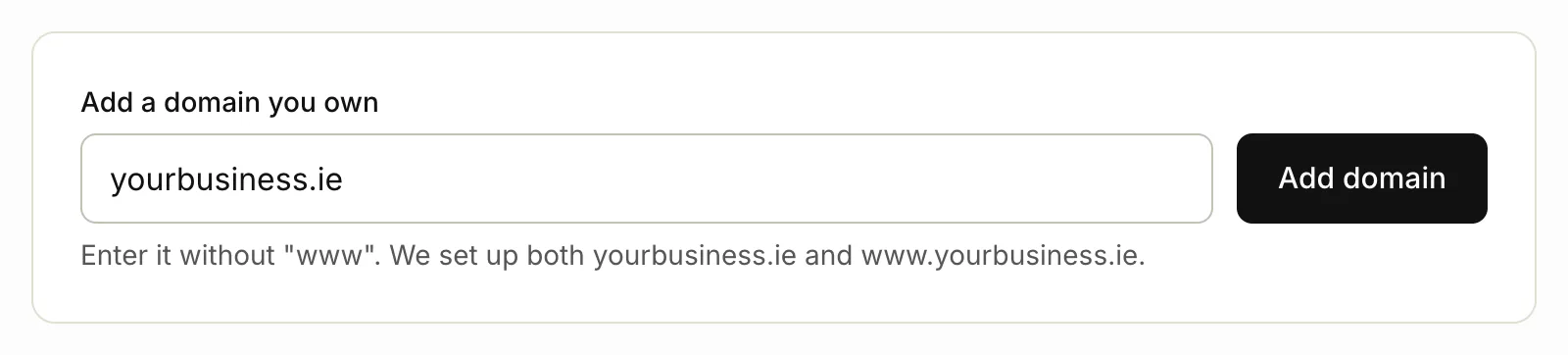
We set up both yourbusiness.ie and www.yourbusiness.ie. Your domain shows Waiting for DNS until the records below are in place.
The DNS records we need
Your Domains page lists the exact records for your domain, under Set up DNS at your domain provider. They look like this:
| Type | Name / Host | Value / Points to |
|---|---|---|
| A | @ |
142.93.41.173 |
| CNAME | www |
your domain, like yourbusiness.ie |
| TXT | _tourfect-verify |
the code on your Domains page |
The TXT record proves the domain is yours. Its code is different for every domain, so copy it from your Domains page.

Add the records at your domain provider
- Log in to your domain provider.
- Open the DNS settings for your domain.
- Add an A record with the name
@and the value142.93.41.173. - Add a CNAME record with the name
wwwand your domain as the value. - Add a TXT record with the name
_tourfect-verifyand the code from your Domains page as the value. - Delete every AAAA record for
@andwww. - Delete any other A records for
@andwww, like a “parked” page. - Save your changes.
Delete every AAAA record. AAAA records are IPv6 addresses, often added by a provider’s parking page or website builder. Tourfect has no IPv6 address, so while one is left in place, many visitors (especially on mobile) reach your old host instead of your Tourfect site. We won’t connect the domain until they’re gone.
If your provider does things differently:
@means the domain itself. Some providers want the name left empty, or your domain name.- If your provider asks for the TXT record’s full name, use
_tourfect-verify.followed by your domain, like_tourfect-verify.yourbusiness.ie. - If your provider won’t allow a CNAME for
www, add an A record forwwwwith the value142.93.41.173instead. - If you use Cloudflare, set these records to “DNS only” (the grey cloud).
Check the connection
- Go back to Domains in your dashboard.
- Click Check now.
When everything is right, your domain shows Connected. DNS changes usually work within an hour but can take up to 48 hours. We check again every 10 minutes, so you can leave it and come back. If something is missing, the domain’s card says what. The secure certificate (https) is set up for you.
Send visitors to your domain
Once your domain shows Connected:
- On Domains, tick Send visitors from your Tourfect address to my primary domain.
- Click Save.
This is better for Google: one address for each page. Your dashboard stays on your Tourfect address.
If you connect more than one domain, click Make primary on the one visitors should see.
Related articles
Still stuck? Contact us
Tell us what you're trying to do and where it went wrong. We reply by email within a working day.
Contact us