Write with AI turns a few rough notes into a tour name, description, highlights, questions and search snippet. It fills in the tour form for you to check. Nothing is saved until you save the tour.
Which plan you need
- Starter: 10 tour drafts a month. The box shows how many you have left, and they start again at the beginning of each month.
- Pro and Custom: no monthly limit. You also get Improve with AI, and AI drafts of your replies to booking requests.
Every business can make up to 20 AI drafts an hour and 60 a day.
Draft a tour
- In your dashboard, click Tours.
- Click New tour. To rewrite a tour you already have, click its name, then click Edit tour.
- In the Write with AI box, type your notes: where the tour goes, what you do, how long it takes and who it suits. A sentence or two is enough.
- Click Write with AI.
- Wait a few seconds while it writes.
- Check the fields it filled in: Name, Description, Highlights, Page title, Meta description and the Suggested questions.
- Change anything that isn’t right. To put back what was there before, click Undo.
- Fill in the rest of the tour, like the price.
- Click Create tour, or Save changes if you’re editing a tour.
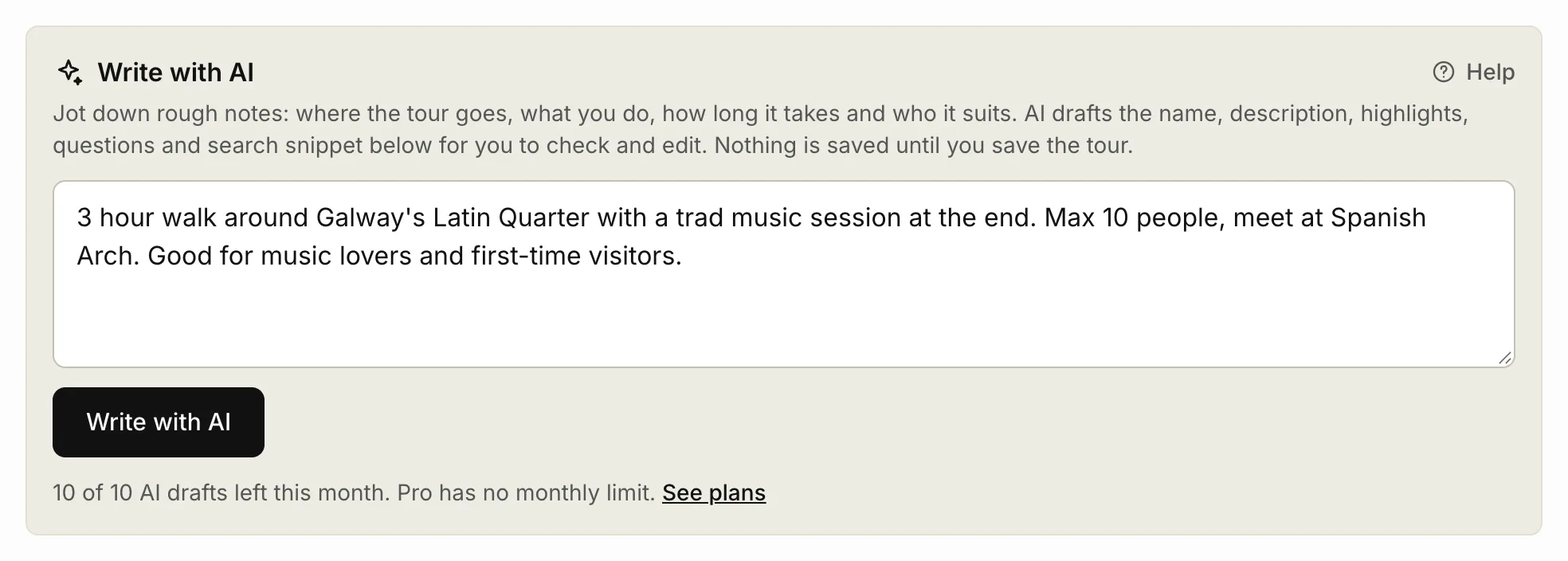
The AI also reads what’s already in the form, like the category, price and meeting point. The Suggested questions are added to the tour’s FAQs when you save. You can change them later under Site content, in FAQs.
AI can get details wrong. Check prices, times and places before you save.
Improve a tour (Pro)
When a tour’s page could be better, its Improve this tour panel offers to draft the weakest parts for you.
- Click Tours.
- Click the tour’s name.
- Under Improve this tour, click Improve with AI.
- In the tour form, click Improve with AI.
- Check the highlighted drafts and change anything that isn’t right.
- Click Save changes.
Draft a reply to a request (Pro)
- Click Requests.
- Click the request.
- In Draft your note with AI, type anything the note should say, for example “meet 10 minutes early”. This is optional.
- Click Draft an acceptance or Draft a decline.
- Check the note and change anything that isn’t right.
- Click Accept or Decline.
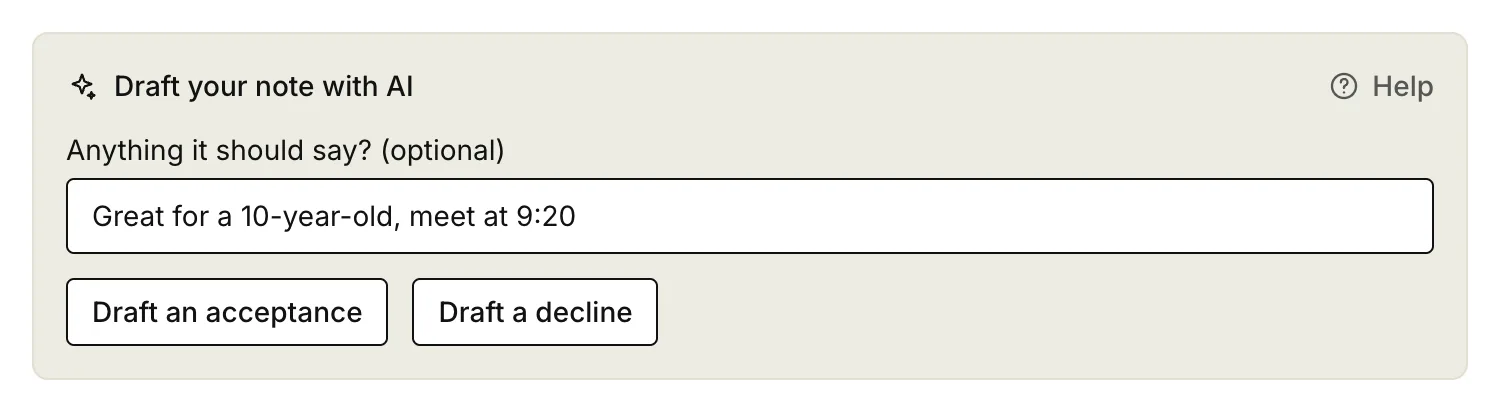
The AI never sends anything. Your answer only goes to the traveller when you click Accept or Decline.
Related articles
Still stuck? Contact us
Tell us what you're trying to do and where it went wrong. We reply by email within a working day.
Contact us