This needs the Pro or Custom plan. See plans and billing
Every tour has a score out of 100 for how complete its page is. On Pro and Custom, Improve with AI drafts the parts of the page that are losing points, from what the tour already says. You check the drafts before you save.
When “Improve with AI” shows
- In your dashboard, click Tours.
- Click the tour’s name.
- Scroll down to Improve this tour.
The panel shows the tour’s score and what would make the page better. If AI can help with any of it, you see an Improve with AI box that says what it will draft.
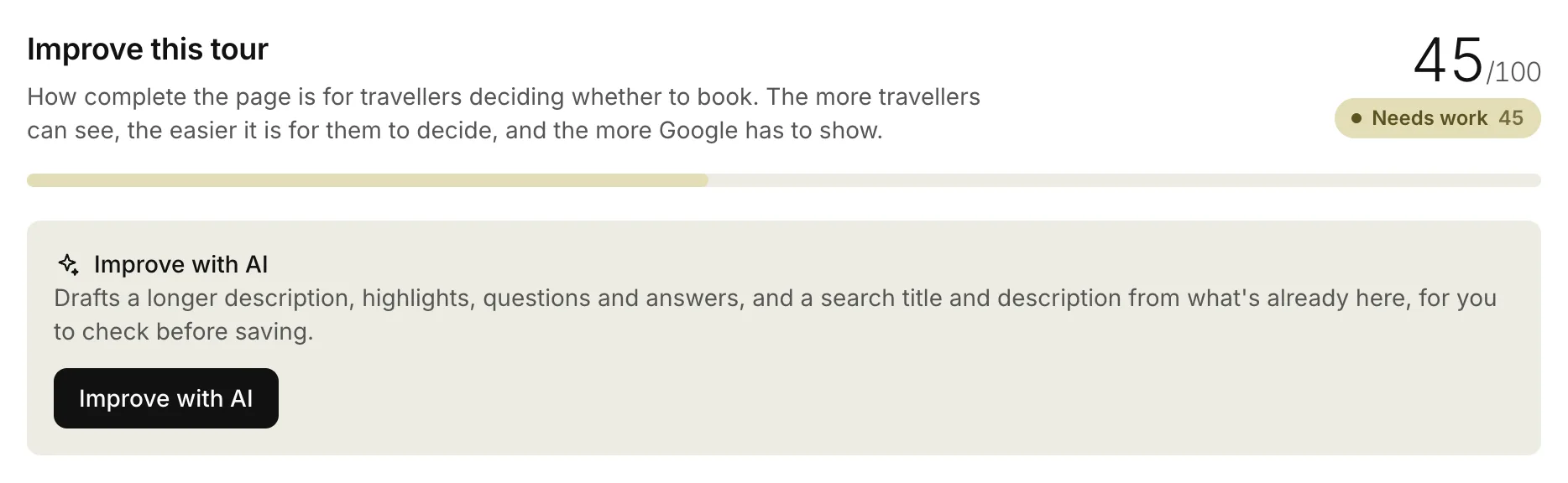
If the box isn’t there, the parts AI can draft are already complete. The rest, like photos, what’s included, the meeting point and reviews, are up to you: each one has a link to the right place.
Which fields it drafts
Only the ones that need work, out of these four:
- Description: a longer description, when yours is short
- Highlights: three to six lines, when you have fewer than three
- Questions: questions and answers travellers ask before booking, when the tour has fewer than three
- Search snippet: the Page title and Meta description people see in Google, when either is empty. It drafts both.
It leaves everything else on the tour as it is.
Draft the improvements
- Under Improve this tour, click Improve with AI. The tour editor opens.
- At the top of the form, you see another Improve with AI box. If there’s anything the drafts should mention, type it in the notes box under Write with AI. This is optional.
- Click Improve with AI.
- Wait a few seconds while it writes.
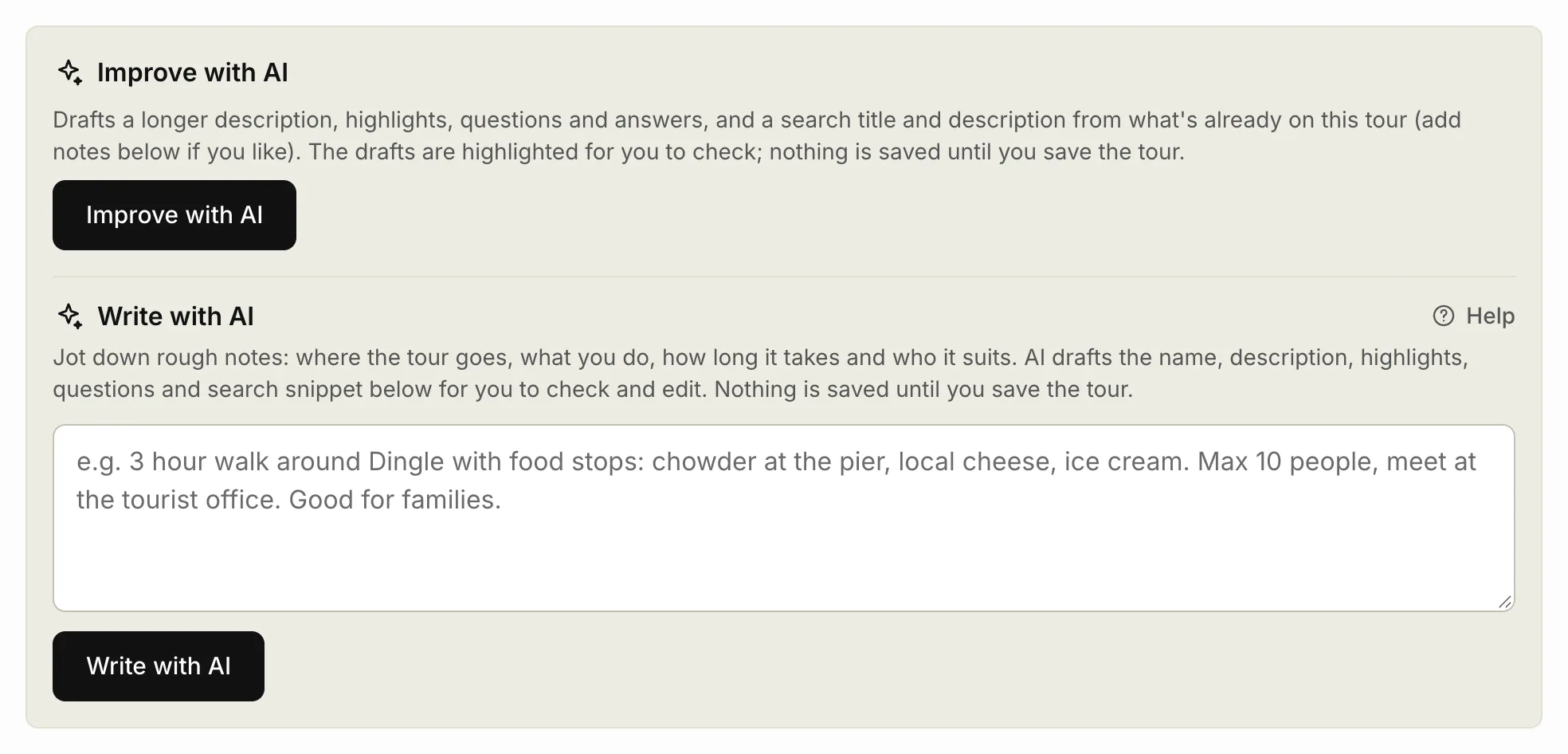
It works from what’s already on the tour: the name, description, highlights, meeting point and what’s included, plus your notes. If there isn’t enough there, it asks you to add a few notes first.
Check and save
- Check each field it filled in. They’re highlighted for a few seconds so you can find them.
- Change anything that isn’t right. To put back what was there before, click Undo.
- If it drafted questions, they’re under Suggested questions. Edit them, or click Remove on any you don’t want.
- Click Save changes.
Nothing changes on your site until you save. The suggested questions are added to the tour’s FAQs when you save, and the tour’s score is worked out again.
AI can get details wrong. Check prices, times and places before you save.
Each business can make up to 20 AI drafts an hour and 60 a day. On Starter, Write with AI is still there for new drafts. See Writing with AI.
Related articles
Still stuck? Contact us
Tell us what you're trying to do and where it went wrong. We reply by email within a working day.
Contact us