When you accept a booking request, we add the booking for you. If a traveller books by phone, by email or through someone else, you can add the booking yourself, so it’s on your calendar with the rest.
Before you start
The traveller needs to be in Customers, with their name and email address. If they aren’t there yet, add them first. See Your customers.
Add the booking
- In your dashboard, click Bookings.
- Click New booking.
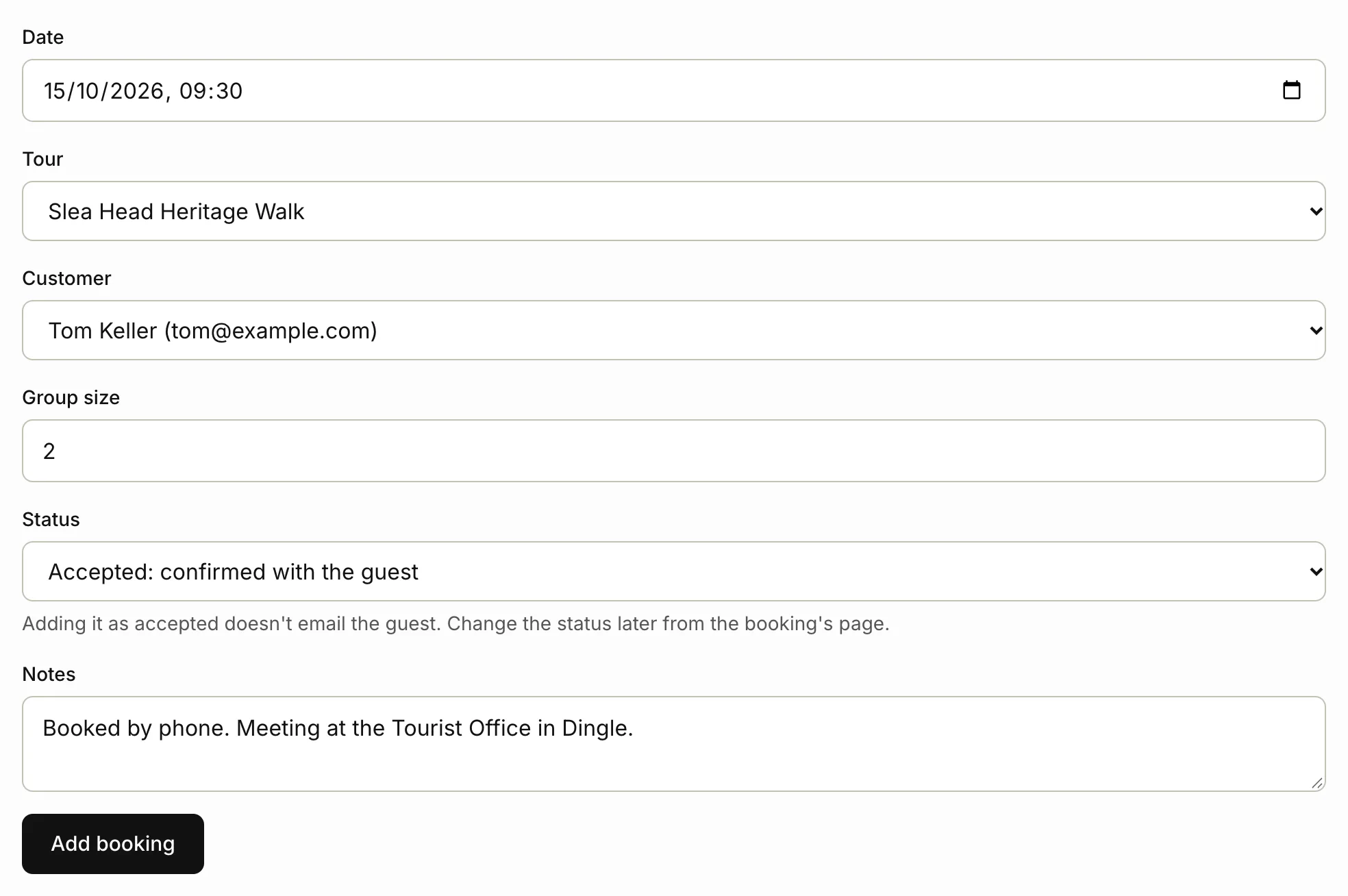
- In Date, pick the day and the start time.
- Choose the Tour.
- Choose the Customer. Each one shows with their email address.
- Type the Group size.
- Choose the Status. See below.
- In Notes, add anything you want to remember, like how they booked or where to collect them. The traveller doesn’t see your notes.
- Click Add booking.
Requested or accepted
Pick the Status that matches where you are with the traveller.
- Requested: not confirmed yet: for a booking you’ve pencilled in. It shows on your calendar and on Home, marked Requested.
- Accepted: confirmed with the guest: for a booking you’ve already agreed. We don’t email the traveller when you add it.
Like every accepted booking, an accepted one gets our reminder email two days before the tour, and a request for a review afterwards, unless you’ve turned those emails off. See Reminders and nudges.
Confirm a requested booking later
- Click Bookings, then View beside the booking. On a phone, tap the booking.
- Under Answer this booking, click Accept and email the guest.
We email the traveller a confirmation with a calendar invite, and you get a “Booking confirmed” email with one too.
If you can’t take it after all, write a note in Note to followed by their name, then click Decline and email the guest, and OK to confirm. We email them your note.
Change a booking
- Click Bookings, then View beside the booking. On a phone, tap the booking.
- Click Edit.
- Change the date, tour, customer, group size or notes.
- Click Save changes.
We don’t email anyone when you edit a booking, so let the traveller know yourself.
A booking doesn’t close the day on your tour, so travellers can still ask for it. If the day or time is now full, mark it sold out. See Set your availability and start times.
Related articles
- Your customers The travellers you've booked, and adding your own.
- Your bookings and calendar See your bookings in a list or a month calendar, and add them to your own calendar app.
- Set your availability and start times Choose the start times travellers can pick, and mark days sold out or not running.
Still stuck? Contact us
Tell us what you're trying to do and where it went wrong. We reply by email within a working day.
Contact us