If you can’t run a tour, for example because of the weather, cancel the booking from its page. We email the traveller for you, with your note.
Cancel from the booking’s page
You can cancel an accepted booking.
- In your dashboard, click Bookings.
- Click View beside the booking. On a phone, tap the booking.
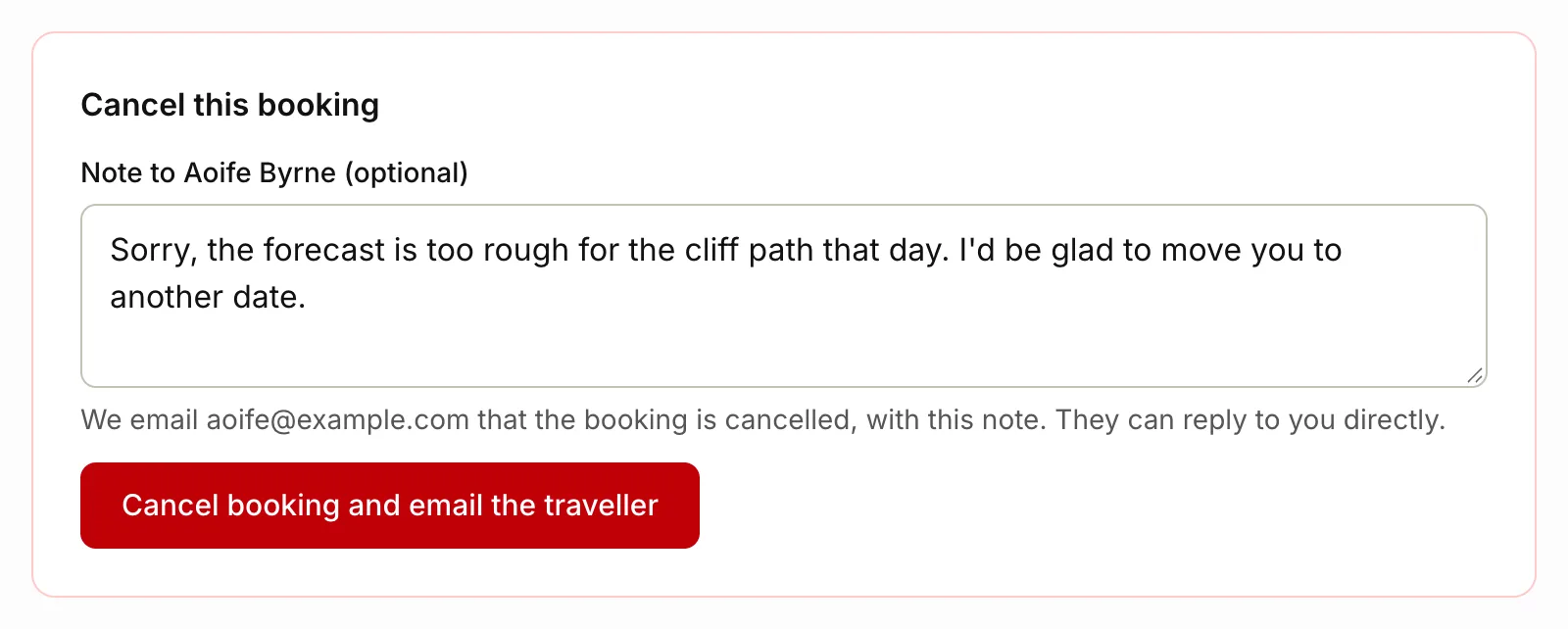
- Under Cancel this booking, write a note in Note to followed by their name. Say why, and offer another day if you can. The note is optional.
- Click Cancel booking and email the traveller.
- Click OK to confirm.
The booking is now marked You cancelled. It leaves your calendar and your calendar link, and the traveller doesn’t get a reminder for it.
The email the traveller gets
We send it in your business’s name. The subject starts with “Cancelled:” and gives the tour and the date. The email:
- says you’ve had to cancel their booking
- shows the tour, the date, the reference and the number of people
- has your note, if you wrote one
- says no payment was taken, so there’s nothing to refund
- has a See other dates button to your tour page
They can reply to it to ask about another date. The link they had to manage their booking stops working. You get an email too, for your records.
If we can’t deliver email to their address, the message after you cancel doesn’t say we’ve emailed them. Call or text them instead.
Cancel by declining the request
If the booking came from a booking request, you can also change your answer to the request.
- Click Requests.
- Click All.
- Click the request.
- Under Change your answer, write a note if you like.
- Click Decline.
The traveller gets our decline email with your note and a link to pick another date. The booking is cancelled, and we don’t send a second email about it.
A booking you haven’t confirmed
A booking you added as Requested has no cancel box. To let the traveller know you can’t take it, click Decline and email the guest on its page, then OK. See Add a booking yourself.
When the traveller cancels
If a traveller tells you by phone or email that they can’t come:
- Click Bookings, then View beside the booking.
- Click The guest cancelled.
- Click OK to confirm.
The booking is marked Guest cancelled. We email them to confirm, and you get a copy. If they asked to cancel from the link in their emails, see When a traveller asks to change or cancel.
Cancel or delete
Delete on a booking’s page removes it for good, and we don’t email anyone. To tell the traveller and keep a record, cancel it instead.
Related articles
- When a traveller asks to change or cancel Travellers can ask to change the date, start time or group size of a booking, or to cancel it. You accept or decline each ask.
- Handle a booking request Accept or decline a traveller's request for a date, and send them a note.
- Your bookings and calendar See your bookings in a list or a month calendar, and add them to your own calendar app.
Still stuck? Contact us
Tell us what you're trying to do and where it went wrong. We reply by email within a working day.
Contact us