Customers in your dashboard lists the travellers who have booked with you, with their bookings and requests in one place.
Customers added for you
When you accept a booking request, we add the traveller to Customers. We find them by their email address, so someone who books twice is one customer. If they’re already there, we add a phone number they gave you only when you don’t have one. We never change what you’ve written.
When you decline a request, the traveller is added too, with the tag “declined”. It helps when they ask again.
Find a customer
- Click Customers.
- Type a name, an email address or a phone number in Search by name, email or phone.
- Click Search. To see everyone again, click Clear.
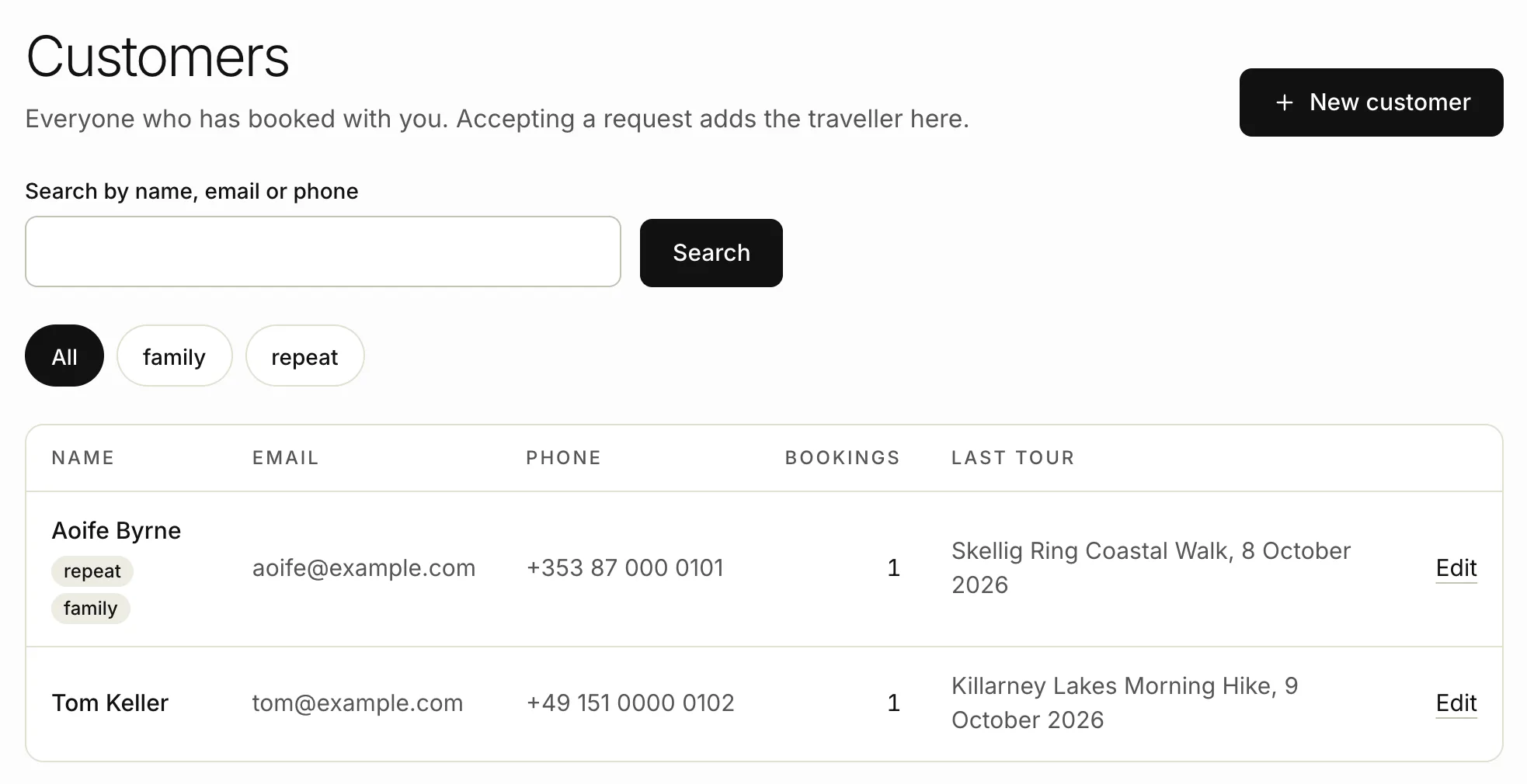
If your customers have tags, click a tag above the list to see only the customers with it. Click All to see everyone.
The list shows each customer’s email, phone, how many bookings they have and their last tour. Declined and cancelled bookings aren’t counted.
A customer’s page
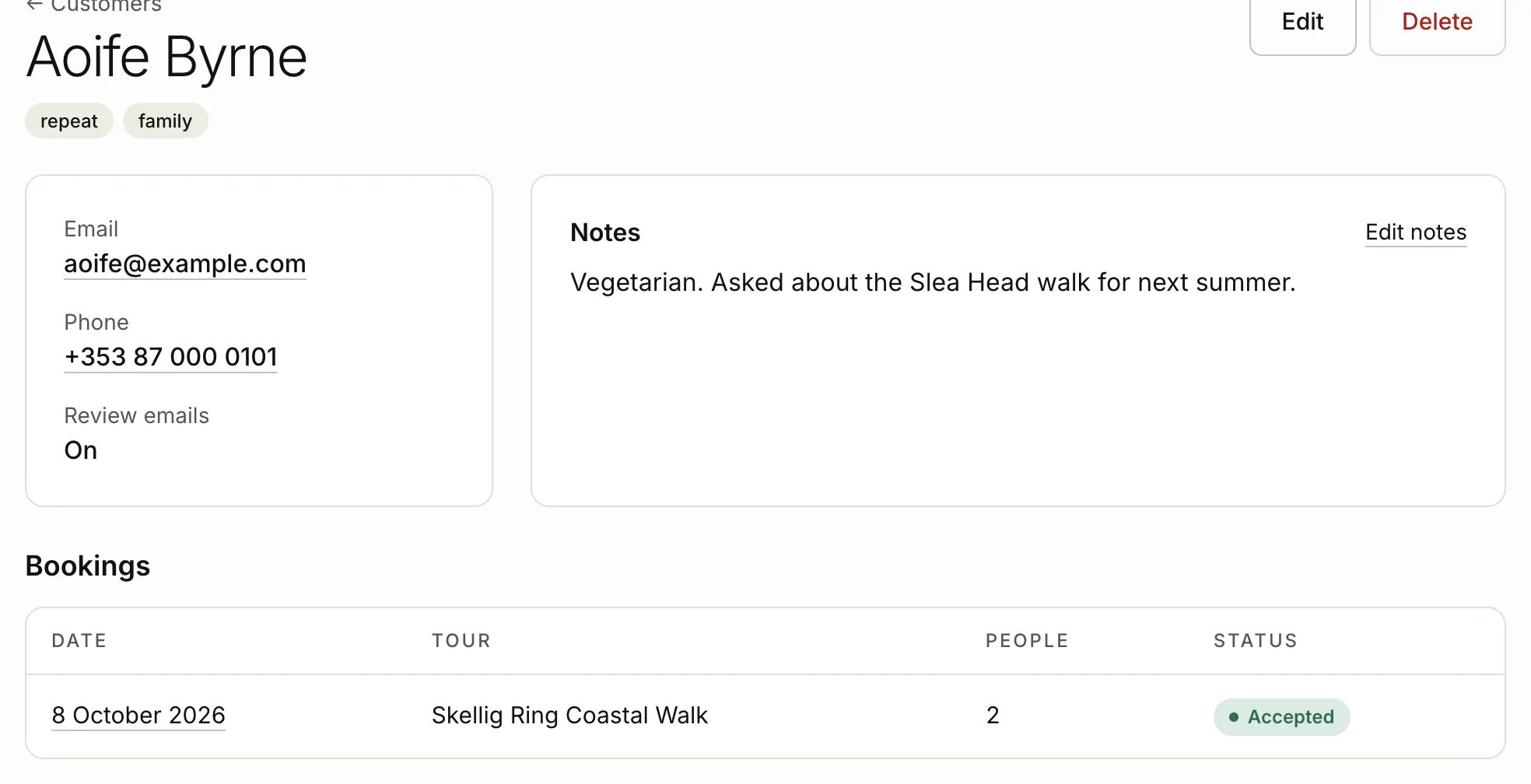
Click a customer’s name to open their page. It shows:
- their email address and phone number
- Review emails: On, or Unsubscribed if they’ve asked us to stop sending them review requests
- your Notes
- their Bookings, newest first
- their Requests: every booking request sent from their email address
Add a customer
Add someone yourself before you add a booking that came in by phone or email.
- Click Customers.
- Click New customer.
- Type their Name and Email. Both are needed.
- Add a Phone number if you have one.
- In Tags, type words to group them by, separated with commas, like “repeat, agent”.
- In Notes, add anything useful, like dietary needs or how they found you. Only you see your notes.
- Click Add customer.
Each email address can only be on one customer. If you see “Email has already been taken”, search for that address: the customer is already there.
Edit a customer
- Click Customers.
- Click Edit beside the customer. On a phone, open the customer and click Edit.
- Change their details, tags or notes.
- Click Save changes.
To change only your notes, open the customer and click Edit notes.
Delete a customer
You can delete a customer who has no bookings. Open them, click Delete, then OK.
To keep a copy of your customers, download your data from your account page. See Your account and password.
Related articles
Still stuck? Contact us
Tell us what you're trying to do and where it went wrong. We reply by email within a working day.
Contact us