When you accept a booking request, it becomes a booking. Bookings you add yourself go in the same place. You can see them as a list, on a month calendar, on Home, and in your own calendar app.
The bookings list
Click Bookings in your dashboard. The newest bookings are at the top. Each one shows the date and start time, its reference, the tour, the customer, the number of people and its status.
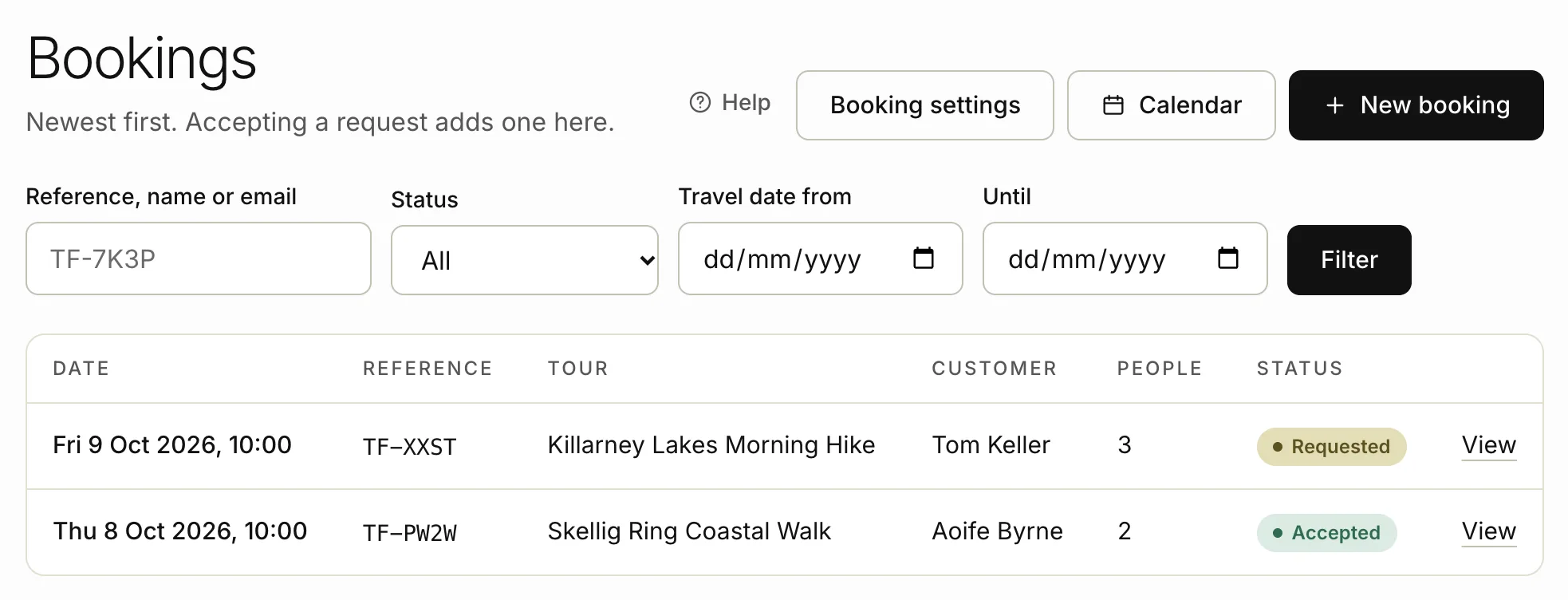
To find a booking:
- Type a reference (like TF-7K3P), a name or an email address in Reference, name or email.
- Pick a Status, or leave it at All.
- To see bookings for some dates only, fill in Travel date from and Until.
- Click Filter. To see every booking again, click Clear.
To open a booking, click View beside it. On a phone, tap the booking. Its page shows the traveller’s email and phone, the group size, your notes and the request it came from.
What each status means
- Requested: a booking you added that isn’t confirmed yet.
- Accepted: confirmed with the traveller.
- Declined: a booking you added and then turned down.
- Guest cancelled: the traveller cancelled.
- You cancelled: you cancelled it.
- Completed: the tour has happened. We mark accepted bookings completed the day after the tour.
The calendar
- Click Bookings.
- Click Calendar.
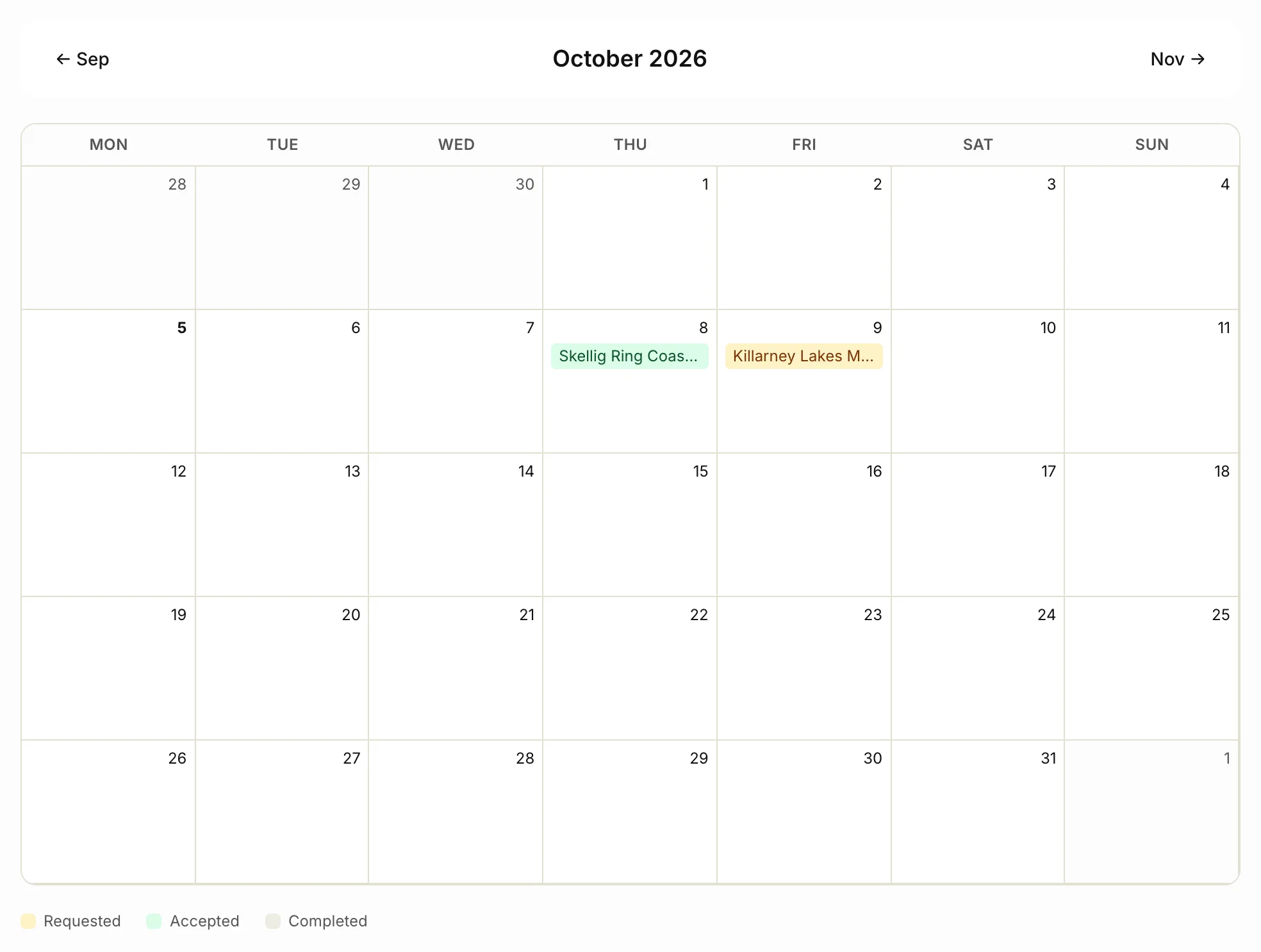
On a computer you see the month as a grid, with each booking on its day. A colour key under the grid shows Requested, Accepted and Completed. If a day has more than three bookings, it shows how many more there are. On a phone you see the busy days as a list, under Bookings in followed by the month.
Use the arrows beside the month’s name to move to the month before or after. Click a booking to open it. Declined and cancelled bookings don’t show on the calendar.
Upcoming bookings on your home page
Home shows how many bookings you have coming up, and when the next one is. Under Upcoming bookings it lists the next five, from today on. Click Calendar or All beside that heading to see more.
Calendar invites in your email
When you accept a request, we email you “Booking confirmed” with a calendar invite for the day. Open the invite to add the booking to your calendar. The traveller gets an invite in their confirmation email too.
See your bookings in your own calendar
Your calendar link shows every booking in Google Calendar, Apple Calendar or Outlook, and keeps them up to date.
- Click Bookings, then Calendar.
- Under See your bookings in your own calendar, click Copy beside Your calendar link.
- Add the link in your calendar app:
- Google Calendar: “Other calendars”, then “From URL”
- Apple Calendar: “New calendar subscription”
- Outlook: “Subscribe from web”
New and changed bookings show up in your calendar app within a few hours, and cancelled ones disappear.
Anyone with this link can see your bookings, with travellers’ names and contact details. Keep it private. If you’ve shared it by mistake, click Make a new link, then OK. The old link stops working, so add the new one to your calendar app.
Related articles
Still stuck? Contact us
Tell us what you're trying to do and where it went wrong. We reply by email within a working day.
Contact us