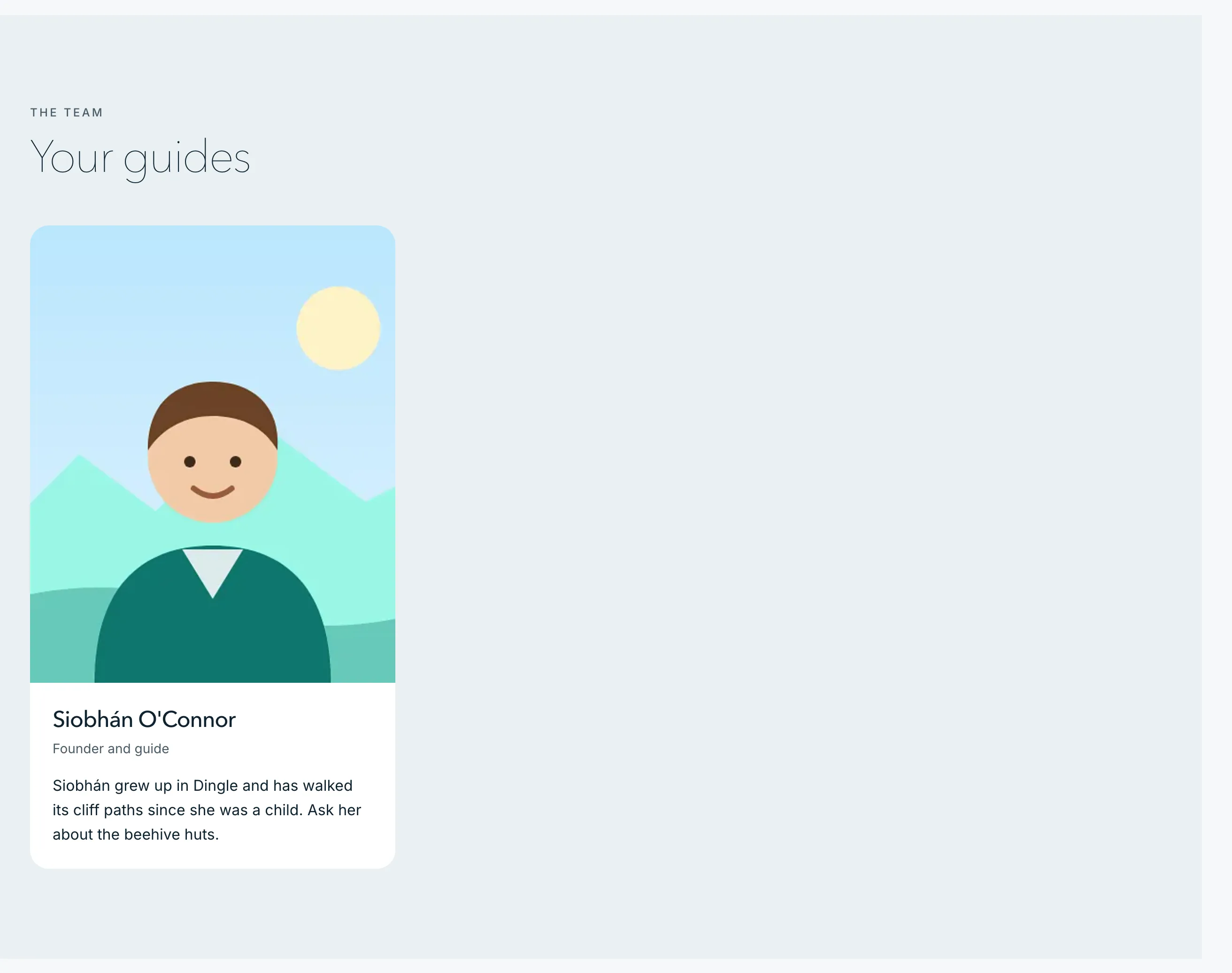
Travellers like to know who’ll meet them. Add the people who lead your tours, and your About page shows them in a section called Your guides, each with a photo, their role and a short bio. Until you add someone, the section stays hidden.
Add a guide
- In your dashboard, click Site content.
- Click Your guides.
- Click Add a guide.
- Type their Name.
- Type their Role (optional), for example “Founder and guide”.
- Write a Short bio (optional): where they’re from, and what they love to show people.
- Under Photo (optional), choose a photo of them.
- Click Add guide.
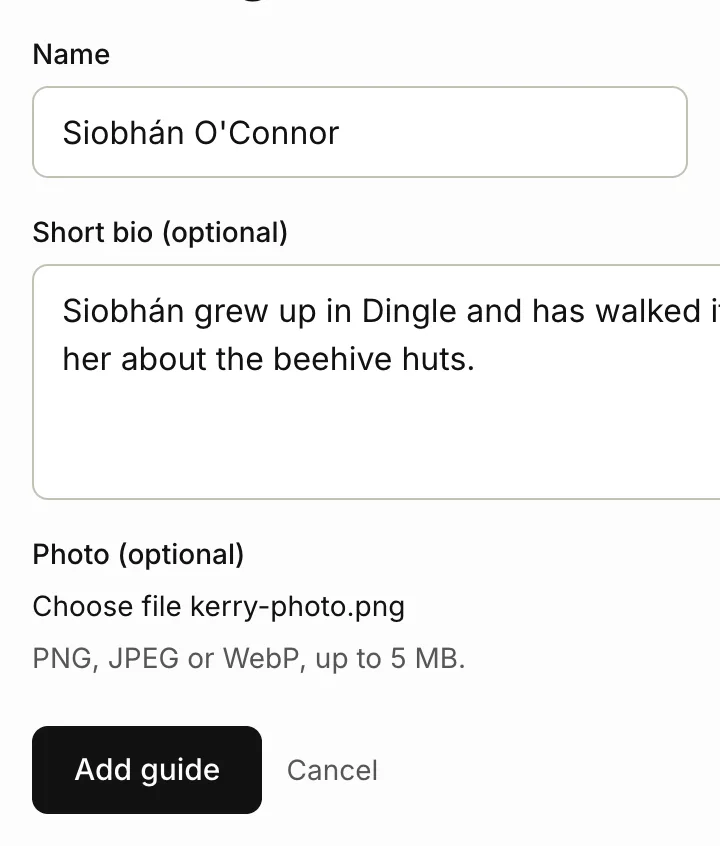
Photos can be PNG, JPEG or WebP files, up to 5 MB each. Portrait photos work best: your About page shows them in a tall frame.
Add yourself too, if you lead tours. If your About page had nothing on it before, adding a guide also puts About in your site’s menu.
Change the order
Each guide has an Order number. Lower numbers come first, on your About page and in your dashboard. New guides get the next number, so they go last.
- Click Site content, then Your guides.
- Click Edit next to the guide.
- Change their Order.
- Click Save guide.
Edit or remove a guide
- Click Site content, then Your guides.
- Click Edit next to the guide.
- Make your changes. To take their photo off, tick Remove current photo.
- Click Save guide.
To take someone off your site, click Remove next to them, then click OK to confirm.
Related articles
Still stuck? Contact us
Tell us what you're trying to do and where it went wrong. We reply by email within a working day.
Contact us