Your site has an About page and a Contact page. You fill in both on one screen, About and contact. Anything you leave blank doesn’t show on your site.
Where to find it
- In your dashboard, click Site content.
- Click About and contact.
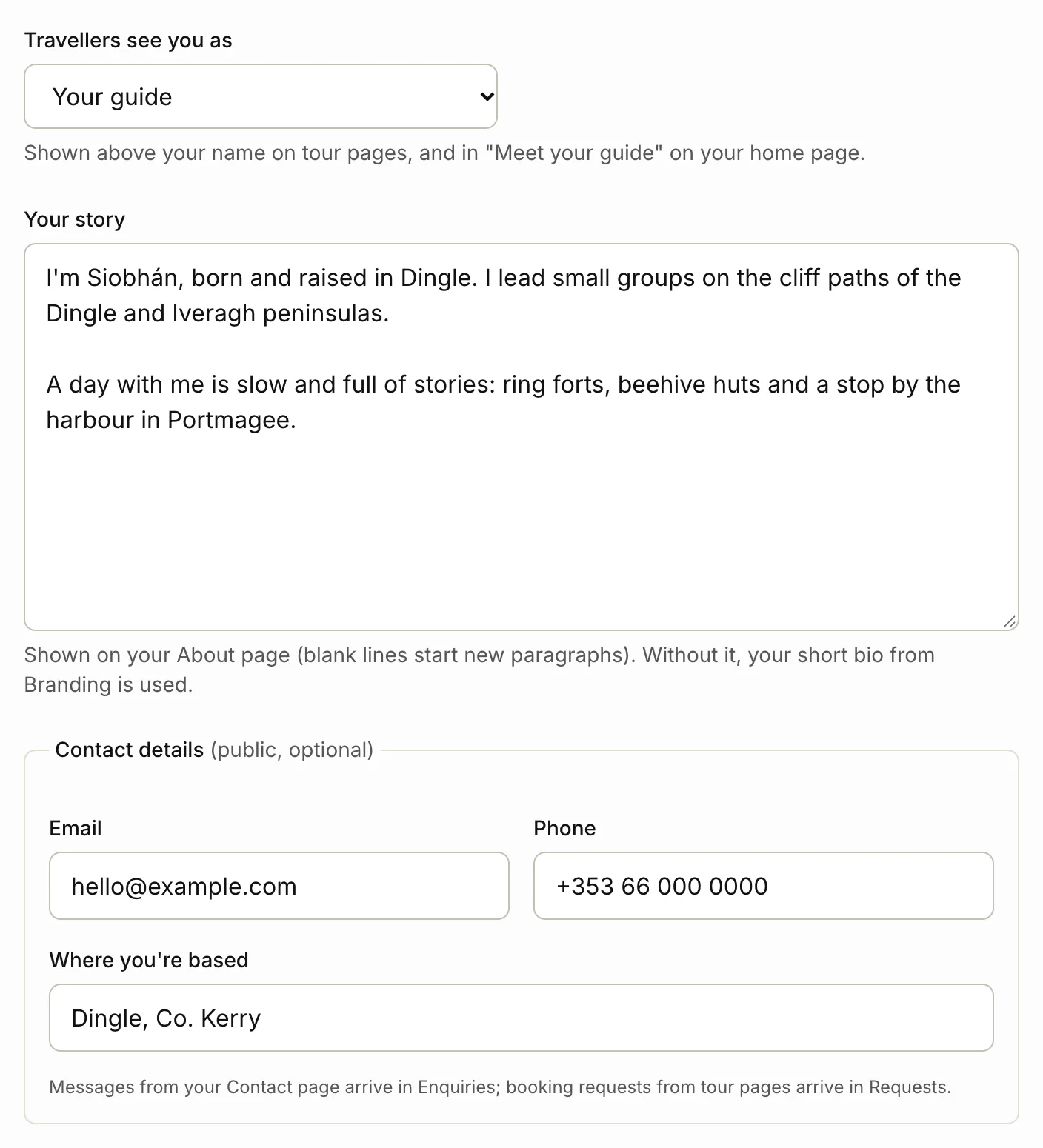
Travellers see you as
Travellers see you as is the label above your name on tour pages. It’s also used in “Meet your guide” on your home page, so “Your tour company” there reads “Meet your tour company”. Choose Your guide, Your tour company, Your travel agent, Your travel partner or No label.
Once your site is live, a new choice waits for the Tourfect team to check it. The form shows “Waiting for Tourfect to check”, and your site keeps the current label until then.
Your story
In Your story, write how you started, where you guide and what a day with you is like. A blank line starts a new paragraph. It’s shown on your About page. If you leave it blank, your About page uses the short bio from Branding.
If your About page is built from sections, you see Your story is on your About page here instead. Click Edit the About page to change it there.
Contact details
Under Contact details, fill in the Email, Phone and Where you’re based you want travellers to see. They’re public. They show on your Contact page, and Where you’re based also shows on your About page.
Messages from your Contact page arrive in Enquiries. Booking requests from tour pages arrive in Requests.
WhatsApp and call buttons
These buttons show in your site’s header, on tour pages and in the booking bar on phones, so travellers can message or ring you.
- In WhatsApp number, type your number with the country code, starting with +, for example +353 87 123 4567.
- Tick Show a WhatsApp button.
- For a call button too, tick Show a call button (uses the phone number above). It rings the Phone under Contact details, so fill that in.
The WhatsApp button opens a chat with you. On a tour page, the first message names the tour.
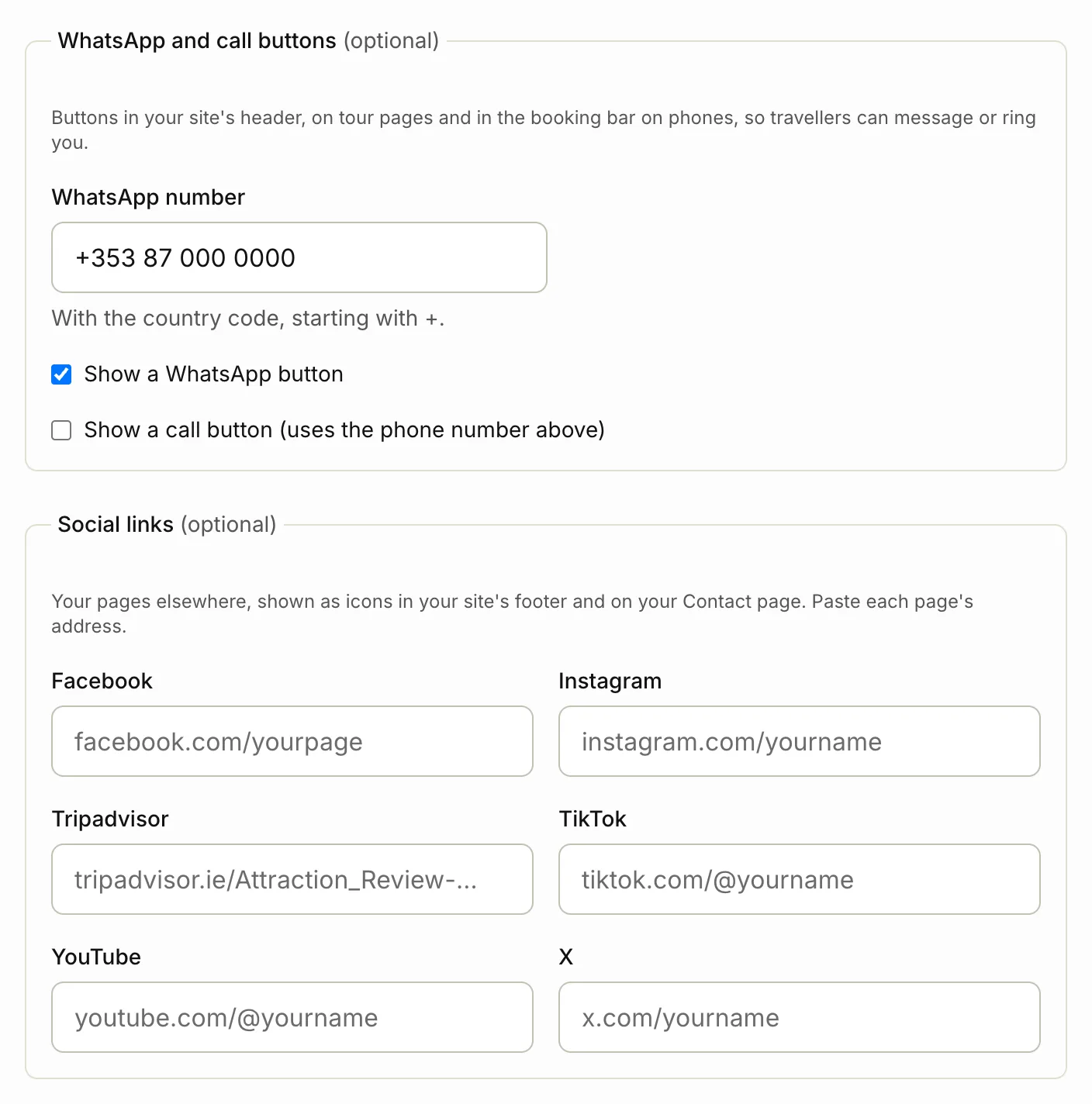
Social links
Under Social links, paste the address of your page on Facebook, Instagram, Tripadvisor, TikTok, YouTube or X. Each link must go to that site, for example a Facebook link to facebook.com. They show as icons in your site’s footer and on your Contact page.
How your pages show in search
These are optional. Leave them blank and your site uses your business name and short bio.
Under Your home page in search and sharing:
- Page title: the title Google shows for your home page. Include your business name.
- Meta description: one or two sentences that make people want to click.
- Picture for sharing: shown when someone shares your link on WhatsApp, Facebook and the like. Wide pictures work best. Without one, your profile photo or logo is used.
Under Your other pages in search, you can set a title and description for your About page, Contact page and Blog, for example About page title and About page description. Blank uses the page’s own title, like “About” followed by your business name.
Save your changes
Click Save About and Contact. Your changes show on your site straight away, apart from a new Travellers see you as while your site is live.
Related articles
- Accreditations Show your approvals, qualifications and memberships on your site, each with an optional logo and link.
- FAQs Answer the questions travellers always ask, on your site or on one tour's page.
- Send your site for review Before your site is public, the Tourfect team checks it. Here's how to send it, and what we look at.
Still stuck? Contact us
Tell us what you're trying to do and where it went wrong. We reply by email within a working day.
Contact us