This needs the Pro or Custom plan. See plans and billing
Under the big photo at the top, your home page is made of sections: your tours, reviews, questions, a booking band and more. Each theme has its own choice and order. On Pro and Custom you can choose which sections show, put them in your own order and rename their headings.
On Starter, Home page sections shows your theme’s layout, but you can’t change it. See Plans and billing.
Open the section editor
- In your dashboard, click Site content.
- Click Home page sections.
You can also get there from Branding: under Site theme, click Home page sections.
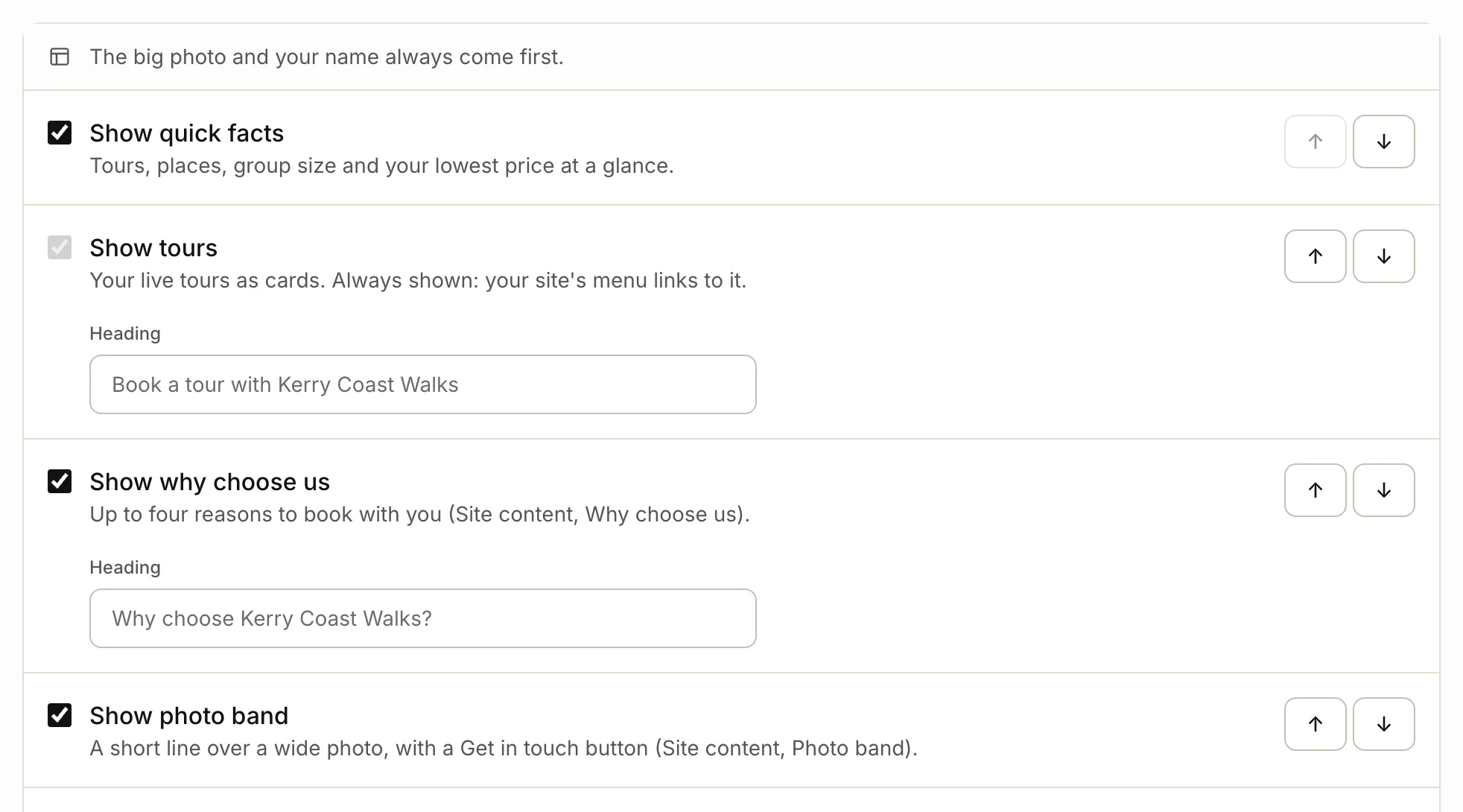
The list starts with the big photo and your name, which always come first. Then come the sections, in order, each with a line on what it shows.
Show or hide a section
Tick a section’s box, like Show reviews, to show it. Untick it to hide it. Show tours is always ticked, because your site’s menu links to it.
A ticked section with nothing in it yet stays hidden on your site until it has something. For example, Show reviews shows nothing until you have a published review.
Change the order
Click the up or down arrow beside a section to move it one place.
Rename a heading
Most sections have a Heading box. When it’s empty, the grey text in it is the heading your site shows. Type your own heading to replace it, or clear the box to go back to the grey one. A few sections, like Show quick facts, have no heading.
Save your layout
Click Save home page. Your home page changes straight away. To check it, click View my site.
Sections that start off
Two sections are off in every theme until you tick them:
- Show quick enquiry: a short form for a date, group size, question and email. It works best near the top, so move it up with the arrows. Messages arrive in Enquiries.
- Show newsletter sign-up: an email sign-up with a consent line. Each person gets an email to confirm. You’ll find the list under Site content, in Subscribers.
Go back to your theme’s layout
- Click Reset to the theme’s layout.
- Confirm.
Your order and headings are cleared, and your home page uses your theme’s layout again. The button only shows once you’ve saved a layout of your own.
If you change theme or plan
Your own layout stays when you change theme. On Starter, your site uses your theme’s layout.
Related articles
Still stuck? Contact us
Tell us what you're trying to do and where it went wrong. We reply by email within a working day.
Contact us