This needs the Pro or Custom plan. See plans and billing
On Pro and Custom you can add your own Google Analytics 4, Google Tag Manager and a Google Ads conversion to your site. They work on your Tourfect address and on your own domain. Tourfect’s own analytics never run on your site.
Verifying your site in Google Search Console works on every plan.
Before you start
- You need the Pro or Custom plan for Analytics, Tag Manager and Ads. On Starter, Tracking has only Search Console, and codes added on Pro stop loading.
- Have your codes from Google ready. A Google Analytics 4 measurement ID looks like G-XXXXXXXXXX, a Tag Manager container ID like GTM-XXXXXXX and a Google Ads conversion ID like AW-123456789.
Add your tracking codes
- In your dashboard, click Tracking.
- Under Analytics and ads, fill in the ones you use:
- Google Analytics 4 measurement ID (optional)
- Google Tag Manager container ID (optional)
- Google Ads conversion ID (optional) and Conversion label (optional)
- Click Save tracking.
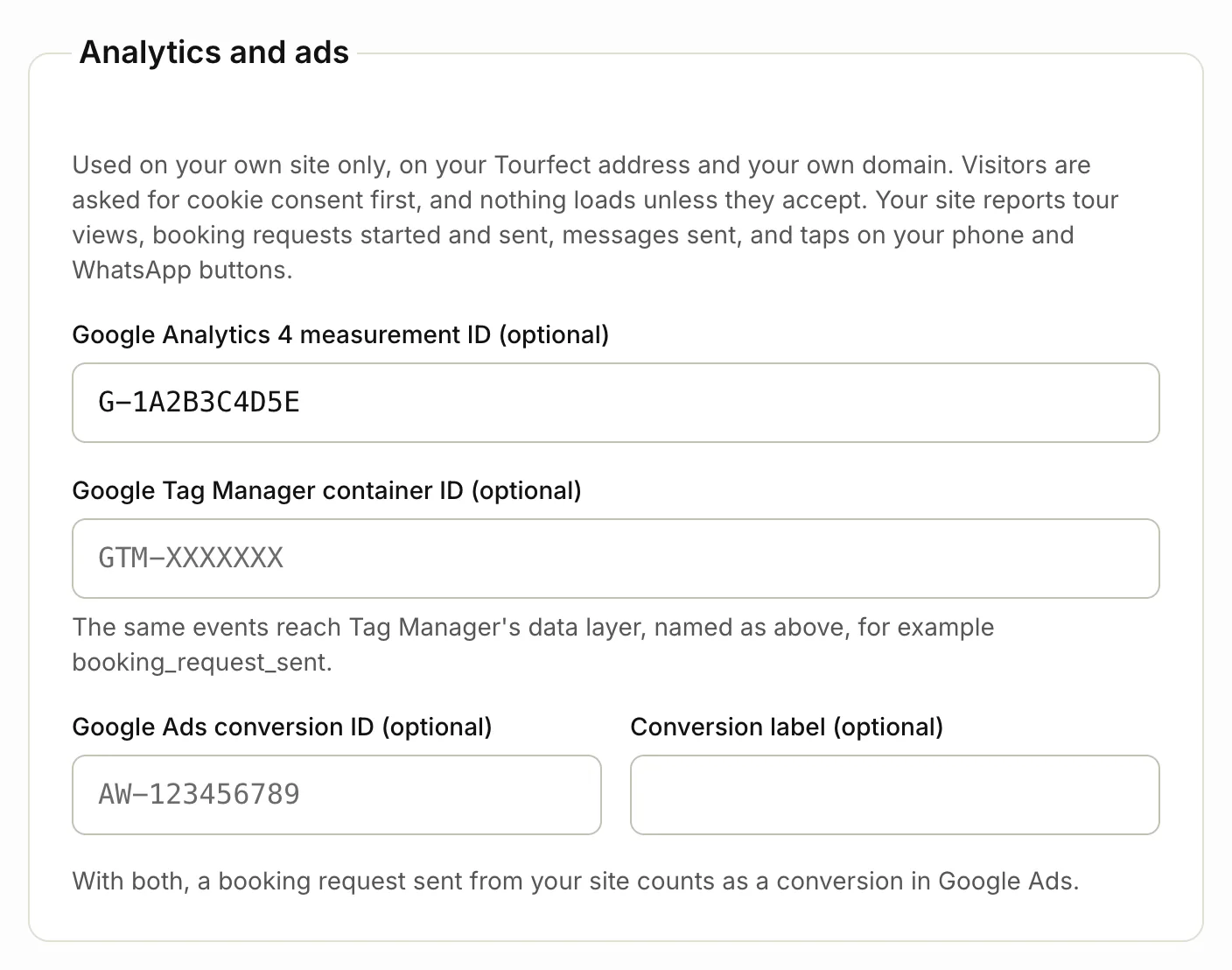
If your Tag Manager container already loads Google Analytics, leave the measurement ID blank here, or visits may be counted twice.
To stop tracking, clear the codes and click Save tracking.
The cookie banner
Once you’ve added a code, visitors to your site see a cookie banner. Nothing from Google loads until they click Accept analytics. If they click Essential only, nothing is tracked.
With Tag Manager or Google Ads, the banner also asks about advertising cookies, and its button reads Accept analytics and ads.
Visitors can change their choice any time with Cookie settings at the foot of each page. Without any codes, there’s no banner.
What your site reports
Every theme sends the same events, to Google Analytics and to Tag Manager’s data layer:
view_tour: someone opened a tour page, with the tour’s name.booking_request_started: someone started filling in a booking request.booking_request_sent: someone sent a booking request, with the tour and group size.enquiry_sent: someone sent a message from a contact form, or a private tour request.phone_clickandwhatsapp_click: someone tapped your phone number or WhatsApp button.
Booking requests as ad conversions
With both a Google Ads conversion ID (optional) and a Conversion label (optional), each booking request sent from your site counts as a conversion in Google Ads. You’ll find both in Google Ads, in your conversion action’s tag details. A conversion label needs the conversion ID too.
Verify your site with Google
This works on every plan and sets no cookies.
- In Google Search Console, add your site. If you have your own domain, add that, as it’s your site’s main address.
- Choose the “HTML tag” method and copy the tag. You can copy the whole tag or only the code inside it.
- In your dashboard, click Tracking.
- Under Google Search Console, paste it in Verification code (optional).
- Click Save tracking.
- Back in Search Console, click Verify.
Your privacy page
If your site uses the standard privacy page, it mentions the Google tools you’ve added. If you wrote your own, add them to it yourself.
Related articles
- Plans and billing What Starter, Pro and Custom include, and how to change your plan.
- Connect your own domain Pro Show your site on your own web address, like yourbusiness.ie, with the DNS records we need.
- About and contact Your story for the About page, your contact details, WhatsApp and call buttons, social links, and how your pages show in Google.
Still stuck? Contact us
Tell us what you're trying to do and where it went wrong. We reply by email within a working day.
Contact us